Cancellation / DNA List
See recent cancelled and missed visits. Sort newest or oldest; filter by date, practitioner or location. Give the follow-up an owner, record contact attempts and check its outcome in one workspace.
 Book a demo
Inside CliniOps
Follow up missed visits, keep local marketing moving and explore AI operators for repetitive admin. Connect daily work, approved guidance and training as your team grows.
Booking follow-through
See recent cancelled and missed visits. Sort newest or oldest; filter by date, practitioner or location. Give the follow-up an owner, record contact attempts and check its outcome in one workspace.
Review action plans and recommended visits against bookings and attendance. Spot missing details and booking gaps, then agree the next step with your team.
Cancellation / DNA: limited Cliniko pilot, subject to source permissions. Journeys: synthetic data only; no PMS imports. Your team handles contact and bookings in its usual systems.

Social media + Buffer
Give your next update an owner and publishing date. Prepare images, videos and post text in Marketing, then review, publish or schedule to multiple social accounts through Buffer.
An appointed publisher confirms the approved content, accounts and posting time. Supported formats apply. Check each channel’s delivery status. See the workflow →
AI operators
Operators are being designed to take on repetitive browser tasks, including remittance matching and invoice preparation. Your team reviews the exact work and checks the result.
Match remittances to invoices, review the payments and approve recording them in Cliniko.
Prepare invoices for review and carry out approved invoicing steps.
Review → Approve the exact task → Run on your connected computer → Check. Explore AI operators →
App highlights
Try sample workflows without changing practice records.
Ask about a practice guide, procedure, your own work or a recorded process owner.
Read the answer and see which approved instruction supports it. Missing evidence should stay an open question.
Inspect the cited passage, then open the current record in your workspace before acting.
Access follows your role and practice settings. Answers use current records you can access; conversations stay private.
A clear question about everyday practice work.
Select “Show example answer” below to continue.Everyday tools
Check sourced guidance and project progress. Preview a supported task or project change, then confirm.
Estimate tasks, find gaps that fit and plan the work. PMS bookings stay unchanged.
Add files, screenshots or notes. Review editable guide drafts, sources and flagged conflicts.
Turn decisions into tasks with an owner, due date and reminder. Keep the next step visible.
Name the outcome, owner and target. Group shared tasks into milestones, attach files and discuss progress. Ask Clini about permitted evidence; confirm changes and accept the result.
Keep project and task conversations in Work discussions. Tag teammates for notifications; announcements have their own section.
Find approved guidance. Assign training linked to the current version and track acknowledgements.
Review changed procedures and open work. Check overdue items and export a scoped handover pack.
Explore cancellations, no-shows, rebooking gaps and appointment types by practitioner or location.
Explain trends using approved practice context. Review suggestions and turn a decision into owned work.
Your day
Set priorities, due dates and estimated time. Plan tasks, checklists and reminder alerts around the diary.
Find tasks that fit confirmed free time. Missing or stale diary data is labelled.
Set an owner and date. Move task blocks or return them to the checklist.
Local task plans leave PMS bookings unchanged. Care details stay in your PMS.
Ask Clini
Find approved guidance and organise tasks or Projects.
Ask about a guide or try “Create task Check stationery tomorrow”.
Check sources, owners, dates and proposed changes.
Confirm supported task or project changes. Final project acceptance stays with your reviewer.
Owners and managers can ask supported saved-data questions—not unrestricted SQL or live PMS queries. Access controls apply; conversations stay private.
Projects
Set an outcome, owner, target and acceptance criteria. Start from a template or a blank project.
Group shared tasks into milestones. Linked tasks appear in Tasks, My day and local diary plans.
Link Team updates, Practice Hub guidance and permitted Insights evidence. Track blockers and next steps.
Submit for review. A person checks the evidence against your acceptance criteria.
Attach documents, images or videos. Tag teammates in a Work discussion shared with Team. Ask Clini for sourced progress and next steps; review changes before confirming. Linked records retain their access controls.
Practice knowledge
Keep source material, current guides and linked work together.
Private tasks and conversations remain private.
Keep files, notes, recordings and versions in Library. Choose what AI may use.
See owners, sources and review dates. Training links to approved guidance.
Guides & training
Turn a non-clinical recording into reviewed instructions and training.
Record admin work without patient or confidential staff information.
Edit AI instructions and check the evidence and gaps.
Ask a different authorised reviewer to approve the current version.
Assign version-linked training, track acknowledgements and set the next review date.
A training acknowledgement is not proof of competence.
Team & improvement
Coordinate through announcements, work discussions, weekly reviews and handovers.
Review improvement suggestions and their evidence.
Assign an owner and date. Keep discussion linked to the work.
Update guidance, train the team and check what changed in Outcomes.
Outcomes & ROI
Check appointment patterns, task timeliness, procedure reviews and training follow-through.
Everyday activity builds a fixed baseline. Results appear when there is enough evidence.
Compare supported practitioner, location and period views, with dated evidence.
Use time samples, work frequency and labour costs to value freed time. Add costs and confirmed benefits for financial ROI.
Time freed up is separate from cash savings. Outcomes shows observed change; it does not prove CliniOps caused the change.
Beside your practice software
| What each system is for | Cliniko or Nookal | CliniOps |
|---|---|---|
| Core record | Patient records, appointments and clinical notes | Tasks, procedures, training, handovers and improvement |
| Daily work | Appointments and the patient record | Owners, follow-ups and clear next steps |
| Team coordination | Check the communication tools in your PMS | Announcements, work-linked updates and owned handovers |
| Practice knowledge | Patient and appointment history | Approved practice knowledge and linked work your account can access |
| Team learning | Care and booking workflows | Current procedures, version-linked training and review dates |
| Connection | Source of truth for care records | Read-only appointment activity; no booking or clinical-record changes |
Historical capacity measures currently support Cliniko; Nookal Today can show calculated free slots. Activity figures do not assess clinical quality or rank staff.
A rebooking gap means a completed appointment has no later booking within 42 days. It does not establish whether the patient has finished their care.
AI and practice work
Explore ideas in your preferred AI tool. Track decisions and follow-through in CliniOps.
| How work continues | General AI conversation | CliniOps |
|---|---|---|
| Context | Conversation and supported connected sources | Permission-filtered practice knowledge and linked work |
| Typical use | Brainstorming, writing and exploring ideas | Practice answers, guides, training and owned tasks |
| Follow-through | Depends on the tool, integrations and plan | Confirmed task actions, owners, due dates, review history and current guidance |
| Control | Controls vary by tool, settings and connected actions | Access controls, confirmed actions and independent approval |
External AI capabilities vary by product, plan, settings and connected tools.
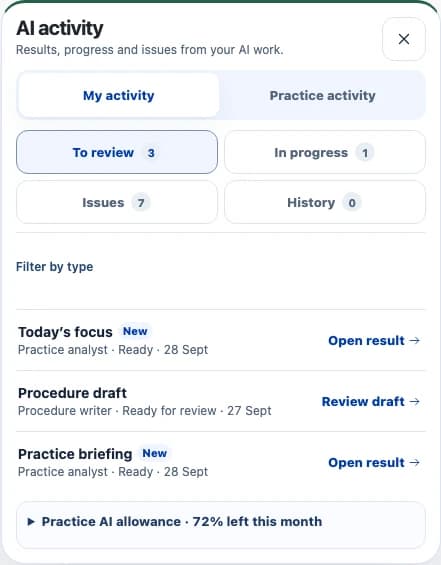
AI activity
See results to review, work in progress and issues separately. Review or retry in the original workflow.
Work can continue in the background. You see only work your account can access, with one shared practice allowance.
Opening this panel starts no AI work and uses no allowance. You decide what to use.
Built developer preview
Use selected practice knowledge. Return operational drafts for people to review.
Access selected approved knowledge, eligible personal tasks and bounded saved monthly activity within consent and role limits.
Submit guides, procedures, training, team updates, task proposals and references for review.
People review drafts and confirm next steps. External tools cannot publish, approve or change permissions.
Public API access is not enabled. Provider tests, independent security approval and human pilot checks are pending. No patient records, clinical notes, sensitive HR data, raw Library originals or private chats are exposed.
In development · Fictional data only
A protected workflow for vacancies, applications, owned follow-ups and recruitment costs. Real applicant data is not enabled.
Governance
Practice and role permissions apply throughout, including AI workflows.
Confirm actions. Retain independent approval, versions, review dates and audit history.
Download accessible records, reports and scoped exports for handover.
Explore the workspace
Try a sample clinic: reviewed guidance, training and assigned work. No account needed.
A clearer way to work
Capture know-how, agree the process and follow through.
Follow-through
Keep client follow-ups together: action plans, recommended visits, bookings and attendance.
Spot missing details and booking gaps in one place.
Booking review · One recommended follow-up to check.
Sample data · Production testing currently uses sample clients.Being designed for remittance matching and invoice preparation: review, approve the exact task, run approved browser steps on a connected computer and check the result. Remittance Operator is in development; Invoicing Operator is proposed.
Reception checks the shared handover list at opening and passes unresolved items to the manager.
Use the same approach for cancellation follow-ups, local marketing and team routines. This fixed demo makes no real saves.
The practical details
No. Cliniko or Nookal keeps bookings, patient records and clinical notes. CliniOps connects practice work beside it and cannot change those records.
Ask about guidance, tasks and projects you can access. Check sources and confirm supported changes. Eligible managers can query saved activity. Conversations stay private; people approve project outcomes.
Authorised editors add files, screenshots, recordings or notes and control what AI may use. Review the drafts; a different authorised reviewer approves guides, procedures and training.
Approved guidance and linked work you can access. Library keeps source material and versions, with controls for AI use. Private work stays separate; patient records stay in your PMS.
Give the next step an owner, due date and reminder. Where enabled, Cancellation / DNA keeps contact attempts and outcomes together; Journeys shows recommended visits, bookings and attendance. Cancellation access follows Cliniko source permissions. Journeys currently uses synthetic data only.
No. The capacity calculator uses your assumptions, not measured lost or recovered revenue. Historical capacity metrics support Cliniko; Nookal Today shows calculated free slots.
Owners and managers can download accessible practice records and handover packs. Authorised users can export audit history and reports. Exports follow current permissions and retained records.
Eligible managers see supported booking breakdowns and overdue work. Other members see work they can access. These figures do not rank staff or assess clinical quality.
Time samples, work frequency and labour costs estimate time value. Financial ROI requires recorded costs and confirmed benefits. Time value is separate from cash savings; observed change does not prove causation.
You confirm supported task and project changes. A different authorised reviewer approves guides and training. API drafts need human review; external tools cannot publish or change permissions. Background summaries may refresh within existing controls.
Hosted in Sydney, with HTTPS, practice and role access controls, and sensitive credentials and private files encrypted at rest. External AI processing and retention depend on your provider.
The REST API and MCP interface are a developer preview; public access is disabled. Controlled knowledge, personal tasks, monthly counts and operational drafts are supported. ChatGPT, Claude and Dots validation is pending; Xero and LanternPay are planned.
Use your own assumptions to estimate the fee value of unfilled slots. This is a hypothetical scenario.
Hypothetical capacity value
Example inputs; 48 working weeks per year. Count only slots not refilled. Check actual activity in your PMS.
Fees, demand, attendance and actual collections affect what could be realised.
Not measured lost revenue, recovered revenue or cash savings. CliniOps helps assign operational follow-ups; it does not fill slots automatically.